The OpenStack RC Script
You must use the OpenStack RC Scripts to configure the environment variables for accessing Chameleon features. You can downloaded the script from the Chameleon GUI at the API Access.
Hint
If you use the Chameleon supported (CC) images, you’ll find an openrc
file with a service token in the home directory for the cc user. The file
will be auto-sourced when you login, so you can use the
openstack and the swift CLI
directly, as well as the
cc-snapshot utility tool.
Log in to the GUI at CHI@TACC or CHI@UC.
Important
Download the RC file from the site you would like to interact with. The RC files are different for each site.
Select the project you wish to access via Project and Site Menu.

The Project Dropdown
Download OpenStack RC Script using User Menu by clicking on Openstack RC File v3.
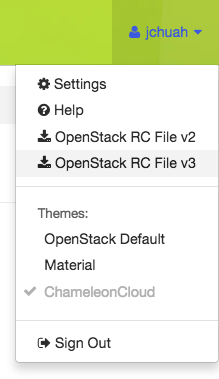
The OpenStack RC File v3 link in the User Dropdown
Run the following command in the terminal:
source <path/to/openstack_rc_file>
Note
The command will not work for Windows users. Skip this step and the next step if you are using Windows system.
Enter your password when prompted.
For macOS/Linux users, your current terminal session has been configured to access your project. Now type
openstackin your terminal session.For Windows users, you have to provide the environment variables in the OpenStack RC script as
openstackcommand parameters. Run the following command in your Windows prompt:openstack --os-auth-url <OS_AUTH_URL> \ --os-project-id <OS_PROJECT_ID> \ --os-project-name <OS_PROJECT_NAME> \ --os-user-domain-name <OS_USER_DOMAIN_NAME> \ --os-username <OS_USERNAME> \ --os-password <OS_PASSWORD> \ --os-region-name <OS_REGION_NAME> \ --os-interface <OS_INTERFACE> \ --os-identity-api-version <OS_IDENTITY_API_VERSION>
Replace values of the parameters by reading from the OpenStack RC script.
Another way to configure the OpenStack client for Windows users is to add/edit environment variables manually via System Properties window. Then, click on Environment Variables… button and manually add/edit the environment variables in OpenStack RC Script to Environment Variable window.

System Properties Window of Windows System
Note
For macOS/Linux users, every time when open a new terminal, you have to run the
sourcecommand to access the OpenStack client.Error
If you get authentication error, check if you input your password correctly.
Type
project listat the(openstack)prompt. You should see a list of the projects you belong to.Error
If you get permission error at this step, check that:
the terminal session has been configured correctly with the environment variables
the OpenStack RC script you
sourceis v3the OpenStack client version is the latest. To check the OpenStack client version, use
openstack --versioncommand. Some older versions may cause errors.
Error
If you get the
Missing valueerror when using a command, it is likely that your terminal session has not been configured correctly and completely with the environment variables. The error may be fixed by re-running thesourcecommand over the OpenStack RC Script or using the command line switches.