Interacting with Instances
Once your bare metal instance has launched, you may interact with it by using SSH if you have associated a Floating IP to it or by using the Serial Console from the GUI.
Connecting via SSH
If you have associated a Floating IP with the instance and you have the
private key in place, you should be able to connect to the instance via SSH
using the cc account.
To access the instance using SSH, type the command in your terminal:
ssh cc@<floating_ip>
Error
If you get errors:
@@@@@@@@@@@@@@@@@@@@@@@@@@@@@@@@@@@@@@@@@@@@@@@@@@@@@@@@@@@
@    WARNING: REMOTE HOST IDENTIFICATION HAS CHANGED!     @
@@@@@@@@@@@@@@@@@@@@@@@@@@@@@@@@@@@@@@@@@@@@@@@@@@@@@@@@@@@
IT IS POSSIBLE THAT SOMEONE IS DOING SOMETHING NASTY!
...
It is likely that you have saved a previous entry for the instance’s
Floating IP in your ~/.ssh/known_hosts file on your computer. Simply
removing the entry from the file should solve the issue.
You can remove the entry from the ~/.ssh/known_hosts file by using the
command:
ssh-keygen -R <floating_ip>
You may receive the response below. Type yes and hit enter:
The authenticity of host '130.202.88.241 (130.202.88.241)' can't be established.
RSA key fingerprint is 5b:ca:f0:63:6f:22:c6:96:9f:c0:4a:d8:5e:dd:fd:eb.
Are you sure you want to continue connecting (yes/no)?
When logged in, your prompt may appear like this:
[cc@my-first-instance ~]$
Note
If you notice SSH errors such as connection refused, password requests, or
failures to accept your key, it is likely that the physical node is still
going through the boot process. In that case, wait before retrying.
Also make sure that you use the cc account. If after 10 minutes you still
cannot connect to the machine, open a ticket with our Help Desk.
You can now check whether the resource matches its known description in the resource registry. For this, simply run:
sudo cc-checks -v
The cc-checks program prints the result of each check in green if it is
successful and red if it failed. You can now run your experiment directly on the
machine via SSH. You can run commands with root privileges by prefixing them
with sudo. To completely switch user and become root, use the sudo su -
root command.
Attention
cc-checks is only available on legacy CentOS7 images!
Connecting via serial console
Chameleon now allows you to connect to the serial console of your bare metal nodes via the GUI. Once your instance is deployed, click on the Console button in the instance contextual menu.
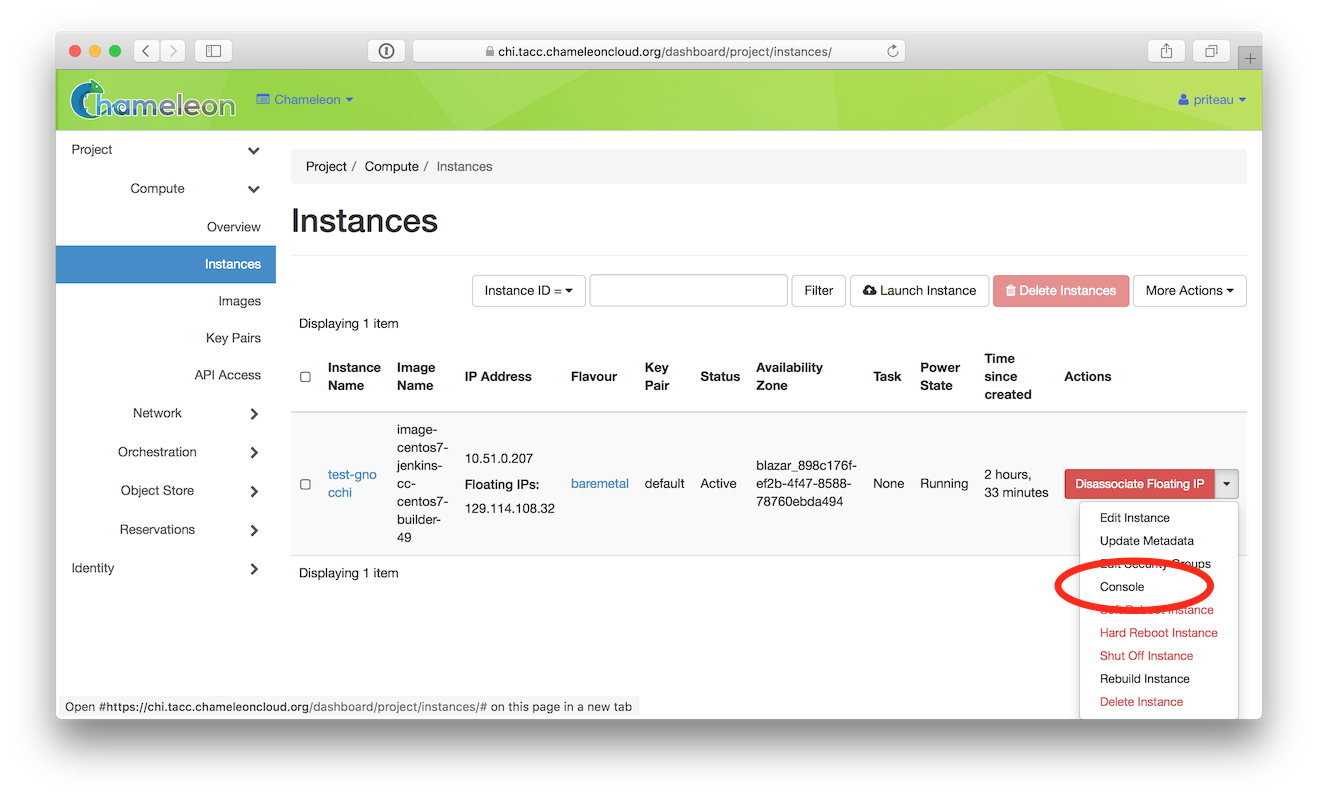
The serial console button
This should open a screen showing an interactive serial console (it could take some time to show up, give it 30 seconds or so).
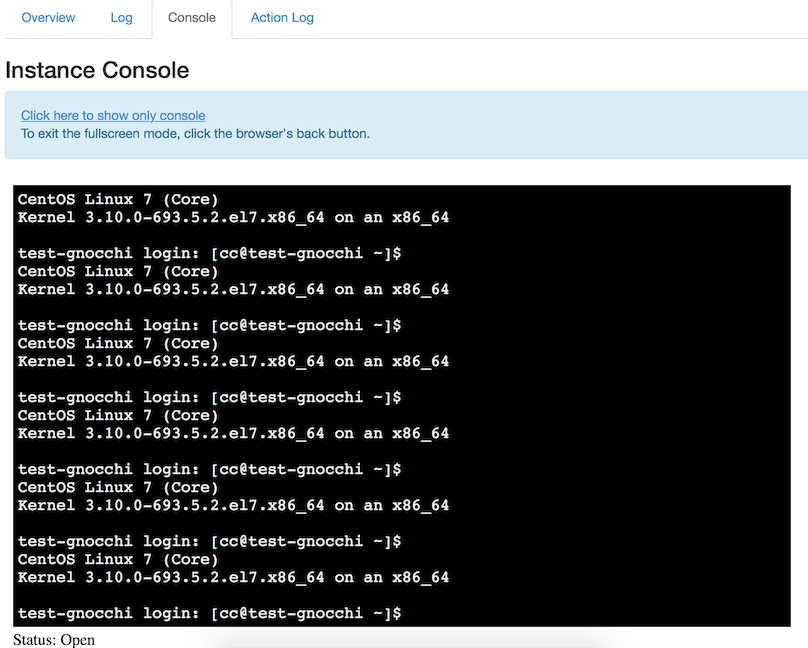
An open console
Our latest images are configured to auto-login into the cc account. Other
images may show you a login prompt. You can set a password on the cc account
by accessing it via SSH, using the command sudo passwd cc, and then using
this password to connect to the console.