Browsing & Launching Artifacts
Trovi allows you to browse artifacts, presented in a scrolling list format. On the right hand side, there are multiple filtering options. The “All” choice shows you all of the artifacts you have access to. You can also see how many times people have downloaded and launched your notebook with the icons in the bottom left corner of an artifact.
Note
Some Trovi artifacts are supported by the Chameleon team and are denoted with a small Chameleon logo. You can contact the Help Desk if you are using these artifacts and encounter issues.
Tip
Chameleon appliances — including Chameleon-supported OS images and heat templates — are now published on Trovi. Filter artifacts by the appliance tag to find them. Whether you are looking for a Jupyter notebook or a bare-metal image, you can find either one via Trovi.
The most powerful feature available via Trovi is the ability to re-launch the available artifacts within Chameleon. Clicking “Launch with JupyterHub” will open a new Jupyter Notebook server with the artifacts downloaded (we support artifacts up to 500MB in total size, contact the Help Desk if you need more space). The animation below shows how easy it is:
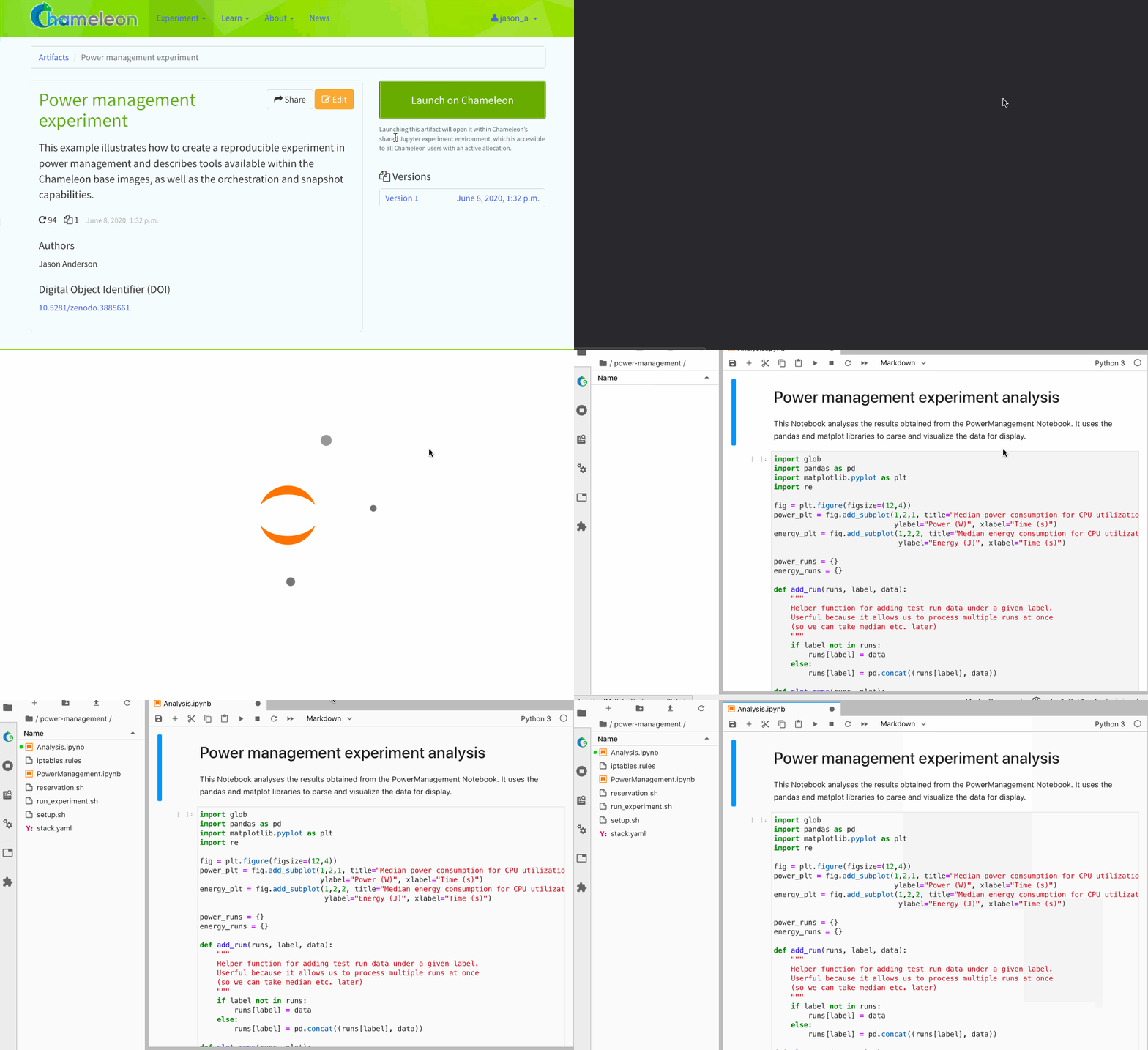
Clicking the “Launch with JupyterHub” button to import a Trovi artifact into your own Jupyter server.