The resource discovery page
You can browse all resources available on Chameleon using the Resource Discovery page. The page lets you filter by hardware characteristics, check current and future availability, and generate reservation commands.

The Chameleon resource discovery page
Filtering resources
The search bar at the top of the page filters across all resource types by keyword — node type name, GPU model, site, architecture, and more. When a search matches resources in a tab other than the one you are viewing, a notice appears below the availability panel with a link to switch to that tab.

Search filtering nodes — with a cross-tab match notice
The left sidebar filters the results. Use the Bare Metal and Virtual Machines tabs to switch between resource types. The Availability filters narrow results to resources free starting at a specific time and for at least a given duration. Additional quick filters cover GPU presence and CPU architecture.

Expand Advanced Filters to filter on more specific hardware attributes including processor model, GPU count and vendor, placement, network, storage, and RDMA. Click Reset all in the sidebar to clear all active filters.

Availability panel
The Availability of Filtered Nodes panel shows current availability across the sites selected in the sidebar. Each site has a color-coded bar where green is available, red is reserved, and yellow is under maintenance, with raw counts on the right.
Node type tags appear under each site. Clicking a tag filters the node list to that type and shows an active-filter pill below the panel. Tags shown in red indicate all nodes of that type are currently reserved.

Status Now — node type tag selected
Switch to Reservation Calendar to see upcoming reservations. In Individual nodes mode each node appears as its own row with red bars marking reserved windows. In By node type mode nodes are collapsed to one row per type — overlapping bars show how many nodes of that type are simultaneously reserved, making it easy to spot when capacity opens up.
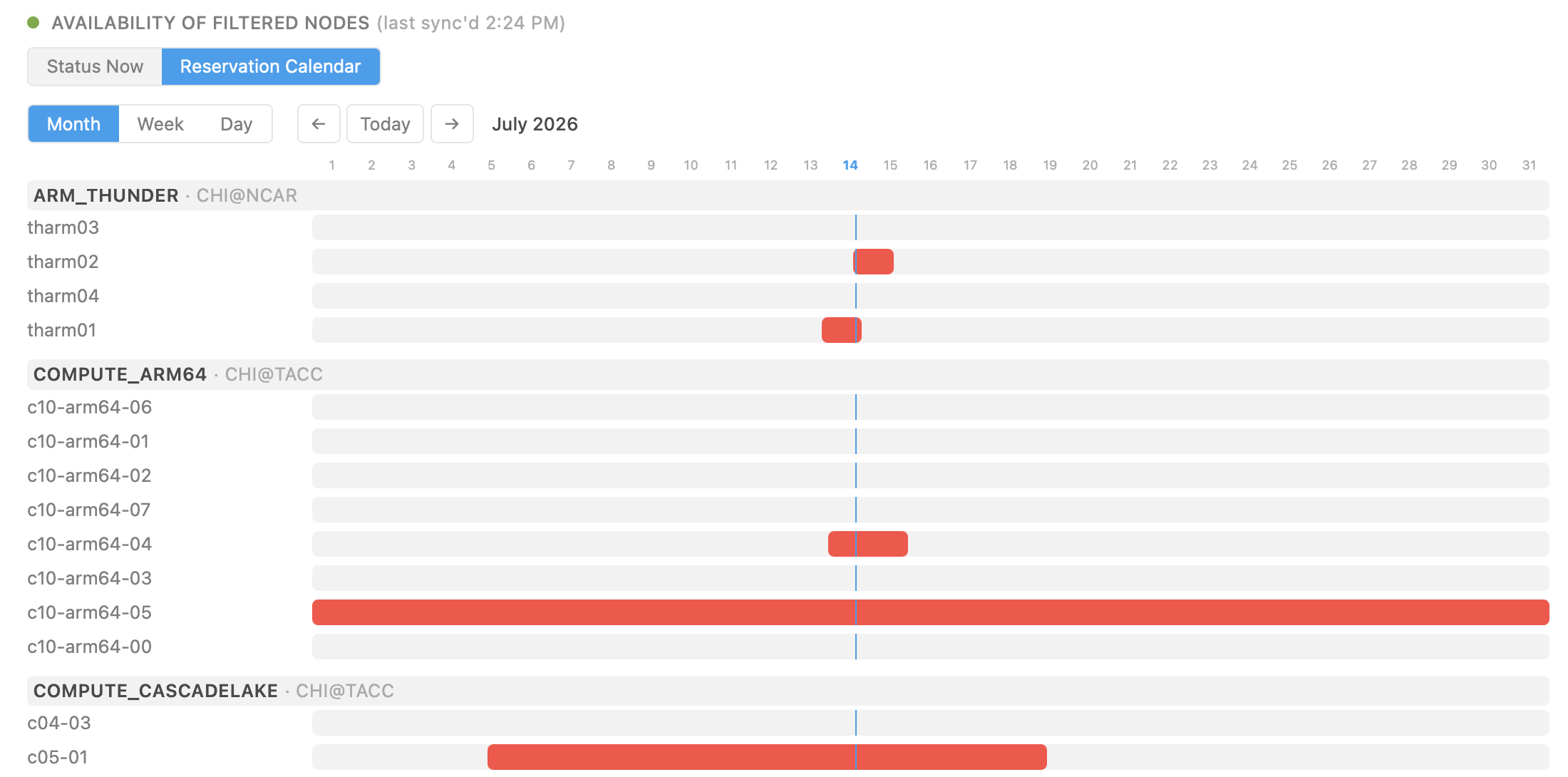
Reservation calendar — individual nodes

Reservation calendar — by node type
Individual nodes
The Individual nodes view lists each bare metal node matching your filters, sorted by soonest availability. Each card shows the node name, site, node type, current availability, and key hardware specs. Check the checkbox on a card to add that node to the reservation cart.
By node type
The By node type view shows one card per node type with aggregated availability counts across all nodes of that type. Use this view when you need any available node of a given type rather than a specific one.

Bare Metal — Node Types
Node details
Click any node card to open its detail panel. The Node Info tab shows the node’s full specifications including its UUID, physical location, CPU, RAM, GPU, and architecture. Some nodes display an Admin note with important information about hardware capabilities or configuration requirements for that node. An inline availability chart lets you toggle between a Gantt view for this specific node and a line graph showing how many nodes of the same type will be free over the coming weeks at that site.

Node detail — Node Info tab

Node type availability over time
Note
Each node’s UUID is shown in the Node Info panel. You will need the UUID when reserving a specific node by name or for power monitoring.
Attention
When Chameleon replaces faulty hardware the replacement typically has the same specifications. If hardware-level reproducibility matters for your experiment, take note of any hardware replacement events that may have occurred during your reservation window.
The Reserve Node tab generates a ready-to-use reservation command. Choose Reserve by node type to reserve any available node of this type, or Reserve by node name to reserve this exact node. Select a duration and copy the command for your preferred tool.

Reserve Node — OpenStack CLI

Reserve Node — python-chi

Reserve Node — Horizon
Reserving from the cart
Checking the checkbox on any node or node type card adds it to the reservation cart. When resources are selected a floating bar appears at the bottom of the page — click Reserve selected to proceed to the cart.

The cart page groups your selections by site and generates reservation instructions for each group. Resources from different sites or of different types (bare metal nodes and VM flavors) can be combined in the same cart, and each site gets its own set of tool tabs, duration picker, and generated command.

Cart page — resources from two sites
Use Continue browsing to return to the discovery page without losing your cart, or Remove all from cart to clear it. Individual resources can be removed with the × next to each entry.