Managing object store using the GUI
To access the Object Store using the GUI at a CHI site, use the navigation sidebar to go to Project > Object Store > Containers.
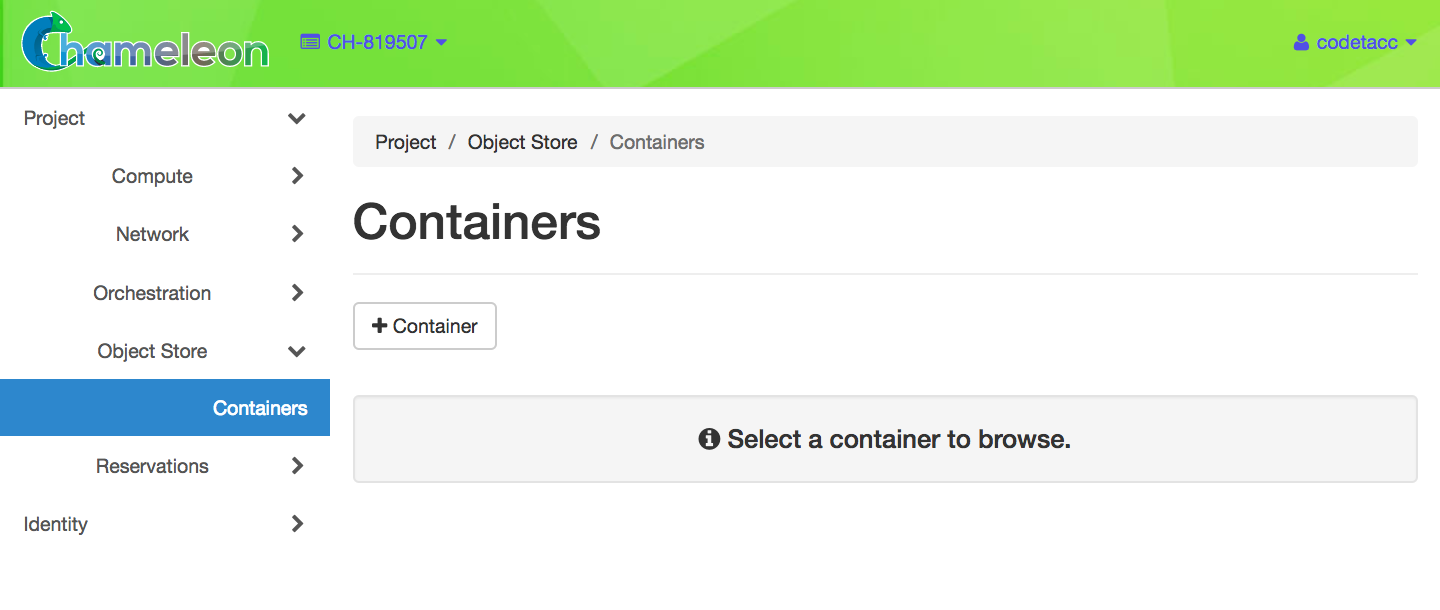
The Containers page
Working with containers
To create a container, click the +Container button. This will open the Create Container dialog.
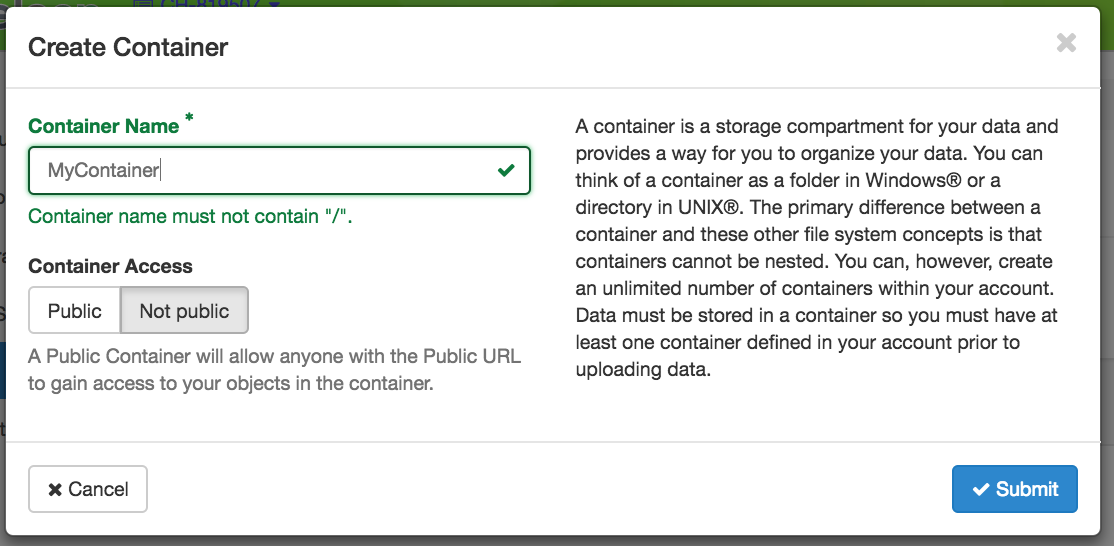
The Create Container dialog
Choose a unique name of your container and set the visibility to either Public or Not Public. When you are finished, click the Submit button. You will see your new Container appear in the list on the Containers page.
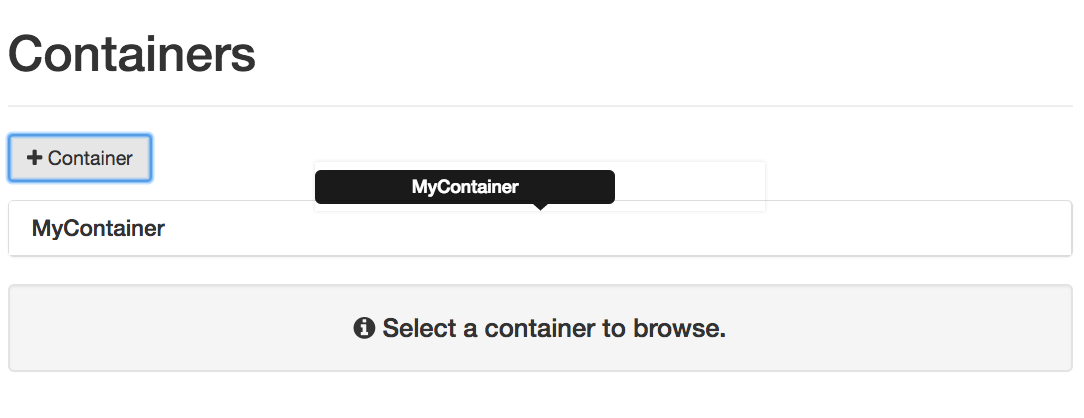
The Container list
You may click on a Container to see the details and work with Objects belonging to it.
Attention
Downloading a container is not available from the GUI. Use the CLI to download containers.
You may delete a container by clicking the Delete icon in the upper right of the Container Detail Panel.
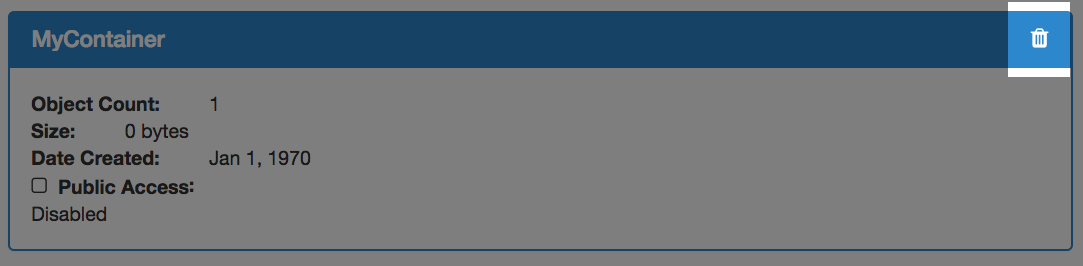
The Delete Container button
Working with objects
To upload a local file to a container, click the button with the Upload symbol next to the search bar.
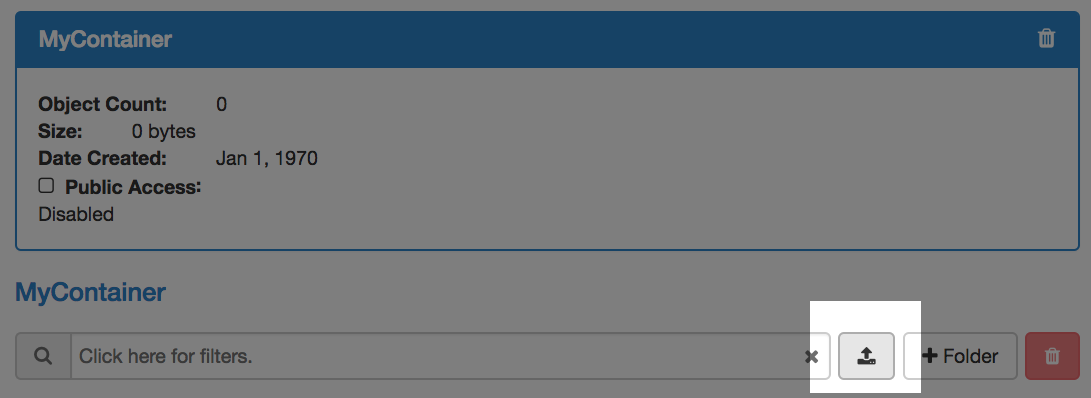
The Upload button
This will open the Upload File dialog.
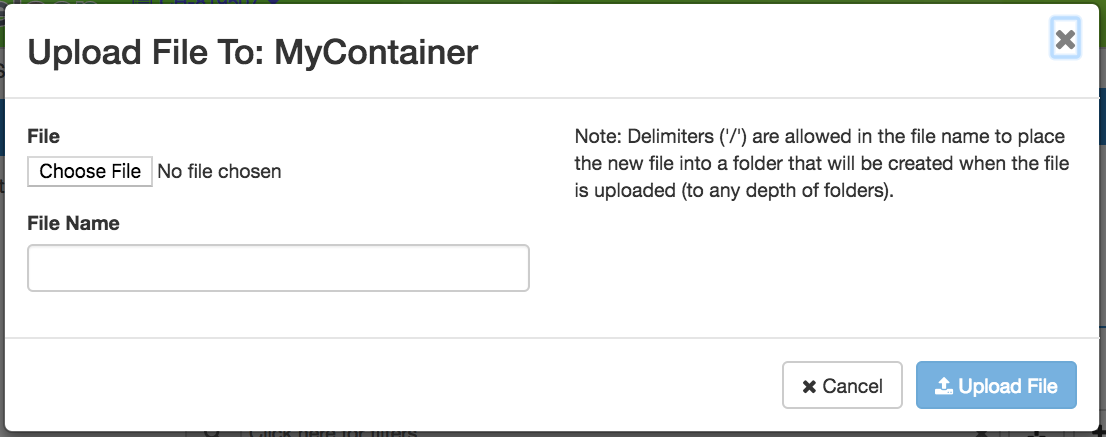
The Upload File dialog
Choose a file to upload from your local file system and give a name to the object.
Working with folders
If you wish to create a Folder within your Container, click the +Folder button and give a name to your folder in the Create Folder dialog.
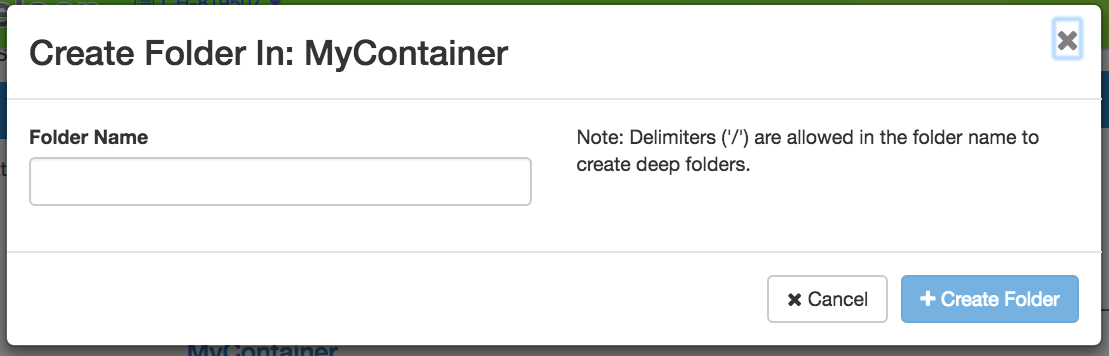
The Create Folder dialog
Your new folder will appear in the Container details.
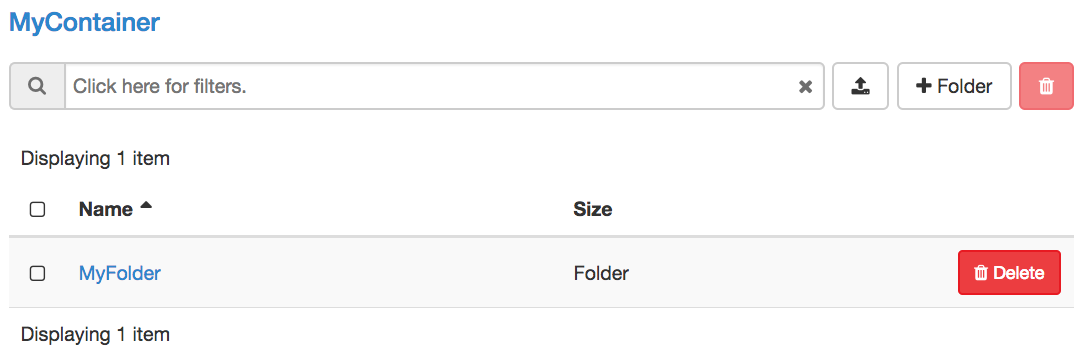
A Container with a Folder
You may browse your folder and upload files to it by clicking on the folder.
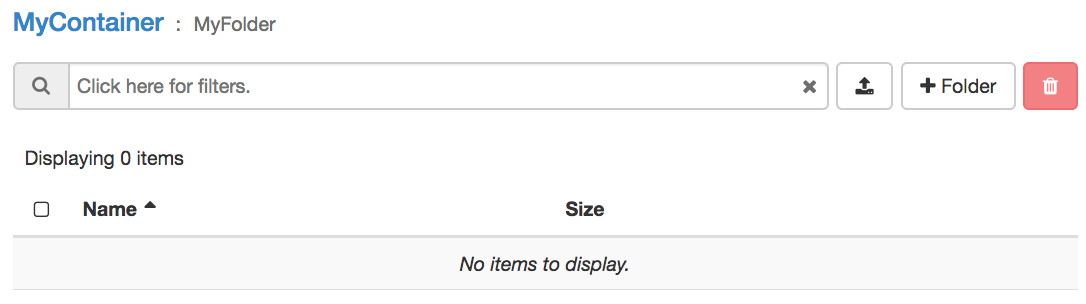
A Folder within the Container