CLI authentication
When using the CLI, you have to provide some credentials so the system trusts that the operations are really being executed by your user account. This page covers two such ways of doing this: a CLI password and application credentials. Both require manually creating and downloading credential files.
Note
For most users, ccauth or cc-login are easier than the methods on this page — they authenticate via your browser and generate credential files for you, with no manual password or application credential setup required. See which authentication method should I use? for guidance on choosing between them. Use a CLI password or application credential only if neither of those tools fits your workflow.
Setting a CLI password
You can set a CLI password via the Chameleon Authentication Portal. The password you associate with your account can not be used to log in to the GUI or Jupyter interfaces and can only be used to authenticate a command-line client.
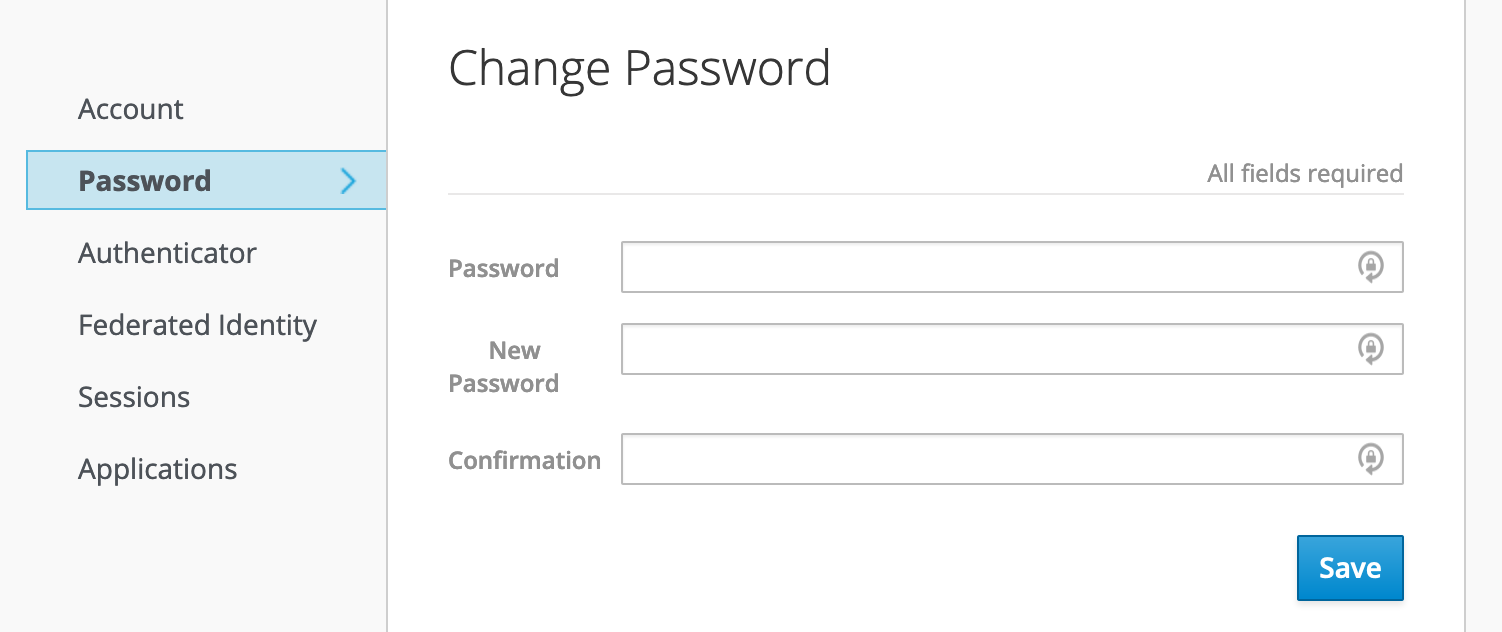
Setting a password in the Chameleon Authentication Portal
The benefit of this method is that this password will work on any Chameleon site.
Note
You should set a strong password for your CLI password, and it should not be a password you use elsewhere. Otherwise, your account risks being compromised by an attacker who has possibly obtained your password from another breached service. We highly recommend using a password manager e.g., BitWarden, LastPass, or 1Password to assist.
Creating an application credential
You can also generate application credentials, which act as dedicated one-off passwords that are authorized with a scoped set of your user account’s permissions, within a single project. If you work on multiple projects simultaneously, you will need to generate one application credential for each project.
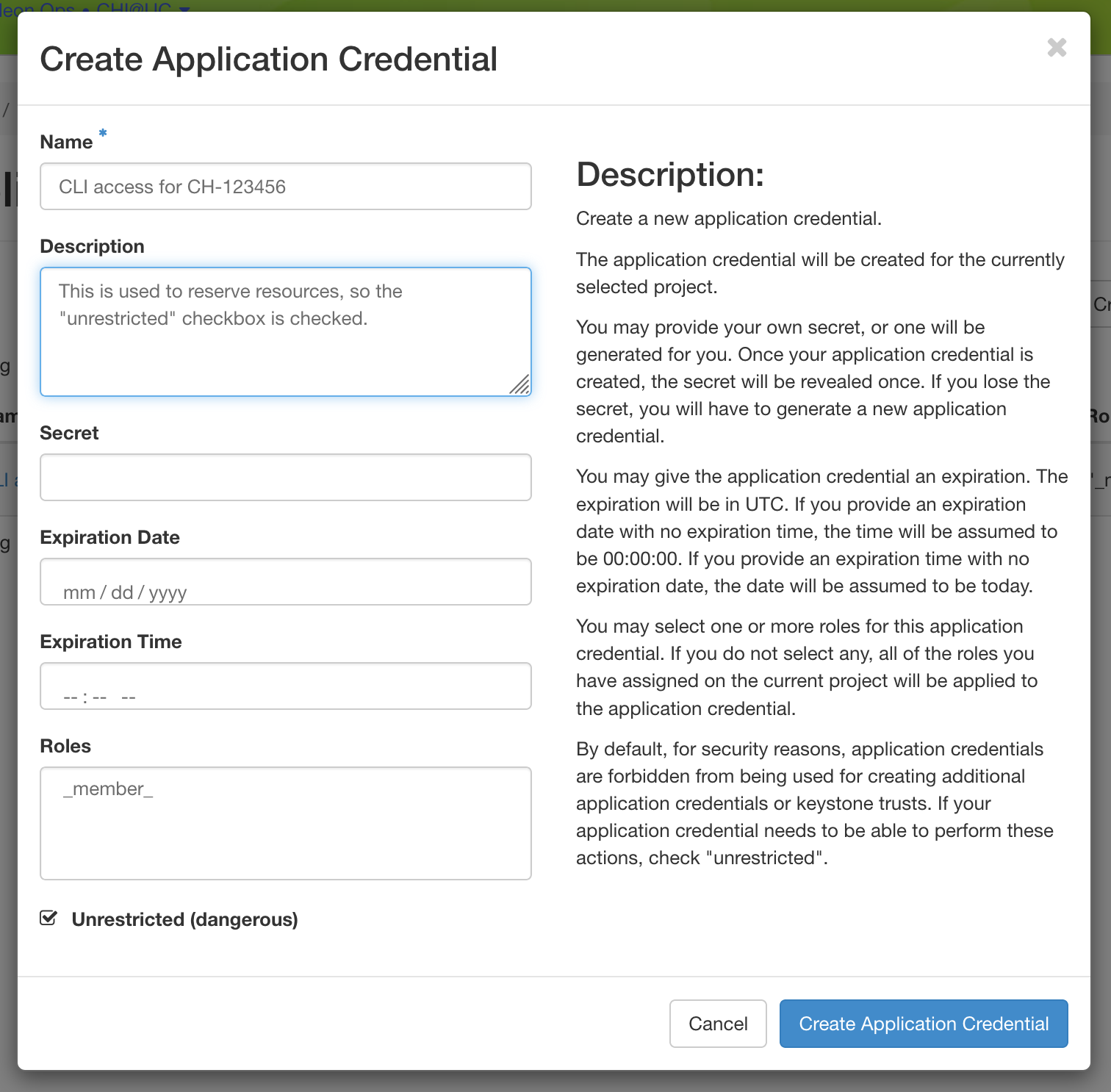
To create an application credential, navigate to the “Identity” dashboard in the Graphical User Interface (GUI), and go to the “Application Credentials” panel. Create a new application credential and name it something meaningful (such as “CLI access for project CH-XXX”). You will also need to check the “unrestricted” checkbox in order to use the CLI to make leases in Blazar. If you do not need to make reservations via the CLI, you can leave the box unchecked, as it is the safer option.
Note
If a credential scoped only to the member role gets a 403
Forbidden error on commands such as openstack image list or
openstack server create, try creating a new application credential
that also includes the reader role alongside member. This is a
known issue with role scoping for application credentials; including
reader resolves it for most operations while a permanent fix is in
progress.
Once the system generates the credential, you will be given the option to download an RC file that configures the CLI to use the application credential for authentication. You will only see the secret credentials once, so make sure to save the RC file or the secret somewhere, as if it’s lost, you will have to delete the credential and create a new one.