The OpenStack RC script
You must use the OpenStack RC Scripts to configure the environment variables for accessing Chameleon features. You can downloaded the script from the Chameleon GUI at the API access.
Note
On an instance running a CC-* image, you can use the cc-login or ccauth command to generate a new openrc file or clouds.yaml entries. This is useful for creating fresh credentials without downloading them from the Chameleon GUI and copying them to your instance — and is now the primary way to get credentials on an instance, since they are no longer provisioned automatically at boot.
Log in to the GUI at on a CHI site.
Important
Download the RC file from the site you would like to interact with. The RC files are different for each site.
Select the project you wish to access via Project and site menu.
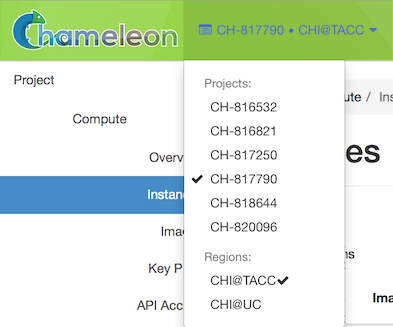
The Project Dropdown
Download OpenStack RC Script using User menu by clicking on Openstack RC File.
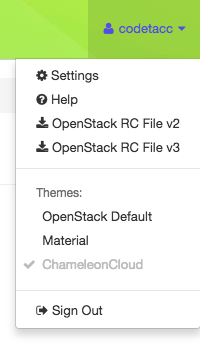
The OpenStack RC File link in the User Dropdown
Tip
As an alternative to the RC file, you can also download a
clouds.yamlfile from the same menu. This lets you manage credentials for multiple OpenStack environments in a single configuration file. See the OpenStack clouds.yaml documentation for details.Run the following command in the terminal:
source <path/to/openstack_rc_file>
Note
The command will not work for Windows users. Skip this step and the next step if you are using Windows system.
Enter your password when prompted.
Note
This prompt is for your CLI password, set via the Chameleon Authentication Portal — not the institutional, Google, or ORCiD credentials you use for federated login. If you don’t have a CLI password yet, see CLI authentication to set one, or use ccauth instead to avoid needing one at all. If you sourced an RC file generated from an application credential, no password prompt will appear, since the credential secret is already embedded in the file.
For macOS/Linux users, your current terminal session has been configured to access your project. Now type
openstackin your terminal session.For Windows users, you have to provide the environment variables in the OpenStack RC script as
openstackcommand parameters. Run the following command in your Windows prompt:openstack --os-auth-url <OS_AUTH_URL> \ --os-project-id <OS_PROJECT_ID> \ --os-project-name <OS_PROJECT_NAME> \ --os-user-domain-name <OS_USER_DOMAIN_NAME> \ --os-username <OS_USERNAME> \ --os-password <OS_PASSWORD> \ --os-region-name <OS_REGION_NAME> \ --os-interface <OS_INTERFACE> \ --os-identity-api-version <OS_IDENTITY_API_VERSION>
Replace values of the parameters by reading from the OpenStack RC script.
Another way to configure the OpenStack client for Windows users is to add/edit environment variables manually via System Properties window. Then, click on Environment Variables… button and manually add/edit the environment variables in OpenStack RC Script to Environment Variable window.
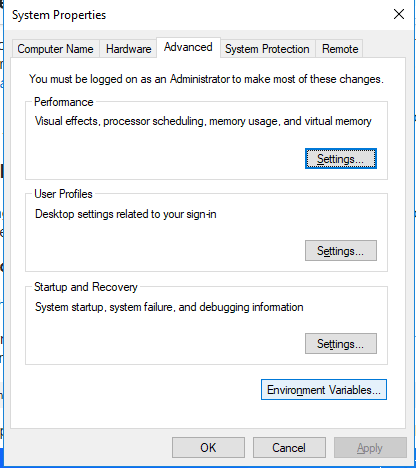
System Properties Window of Windows System
Note
For macOS/Linux users, every time when open a new terminal, you have to run the
sourcecommand to access the OpenStack client.Error
If you get authentication error, check if you input your password correctly.
Type
project listat the(openstack)prompt. You should see a list of the projects you belong to.Error
If you get permission error at this step, check that:
the terminal session has been configured correctly with the environment variables
the OpenStack RC script you
sourceis v3the OpenStack client version is the latest. To check the OpenStack client version, use
openstack --versioncommand. Some older versions may cause errors.
Error
If you get the
Missing valueerror when using a command, it is likely that your terminal session has not been configured correctly and completely with the environment variables. The error may be fixed by re-running thesourcecommand over the OpenStack RC Script or using the command line switches.