GUI features
Upon logging in to the GUI at a Chameleon site, you will see your project’s Overview page.
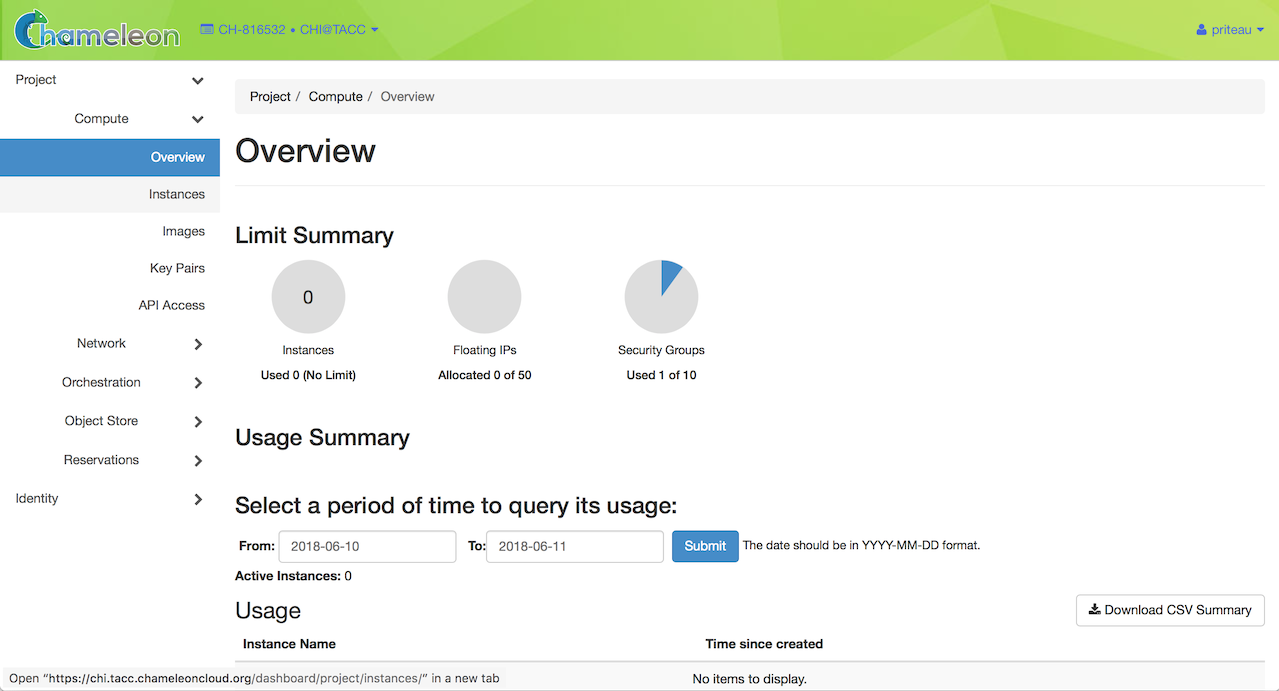
The Chameleon GUI
Project and site menu
To switch among the projects you belong to, use the project and site menu—the dropdown on the upper left of the screen next to the Chameleon logo. You can also use this menu to switch from one Chameleon site to another. This allows you to easily perform multi-site experiments.
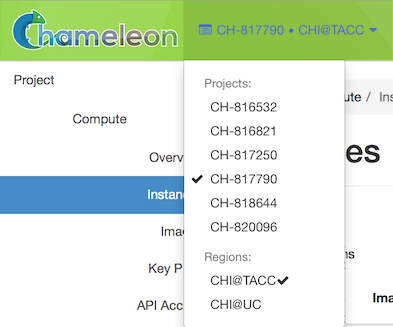
Switching between projects
User menu
To access user specific settings and download OpenStack RC files, use the user menu—the dropdown on the upper right of the screen where you will see your account name.
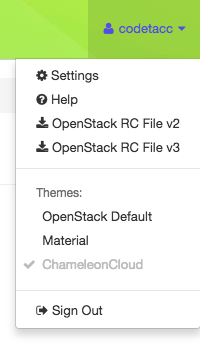
The user dropdown menu
Settings
In the settings menu, you can change user specific settings such as the Timezone.
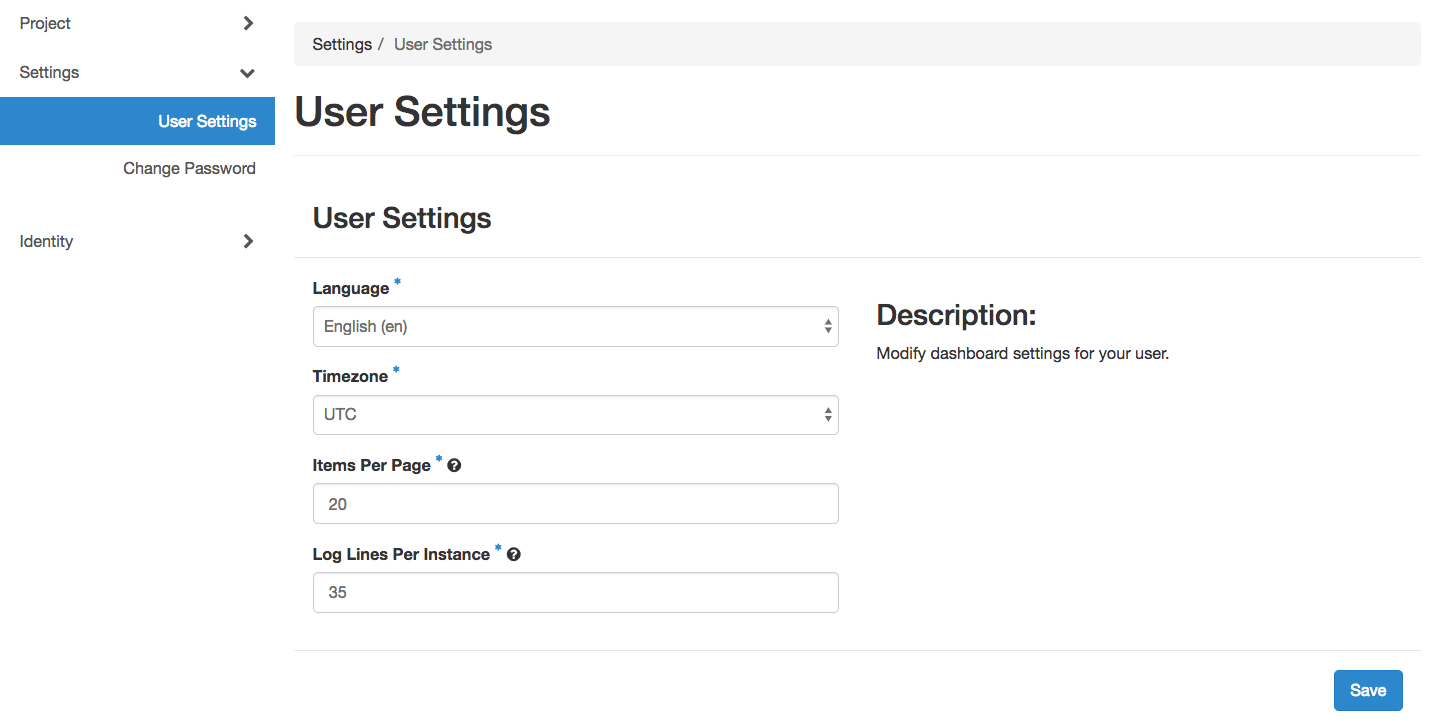
User settings
Note
Updating your timezone is highly recommended. When you make reservations for bare metal resources, your local time will be used. UTC is the default Timezone.
Documentation
The Documentation menu item will take you to this documentation site.
Help desk
The Help Desk menu item will take you to the Chameleon Help Desk, where you can submit support tickets and find answers to common questions.
OpenStack RC file
Clicking on this menu items will download a customized RC file for use with the OpenStack
Command Line Interface. Source the RC file using source command to configure
environment variables that allow you to easily log in using the Command
Line Interface. For more information about OpenStack RC script, please
see The OpenStack RC script.
OpenStack clouds.yaml file
Clicking on this menu item will download a clouds.yaml configuration file
for use with the OpenStack Command Line Interface. This file can be used as an
alternative to the RC file and allows you to manage multiple OpenStack
environments in a single configuration file. See the OpenStack clouds.yaml
documentation
for details on how to use it.
Sign out
Use the sign out menu item to sign out from your current site.
Note
If you do not sign out manually, your session will expire in one hour.