Browsing & launching artifacts
Trovi allows you to browse artifacts, presented in a scrolling list format, and to search or filter to narrow down results. You can also see how many times people have downloaded and launched an artifact via the icons in the bottom left corner of each entry.
Searching & filtering artifacts
On the Trovi homepage, the Browse Artifacts section provides a search bar where you can type keywords to find relevant artifacts. The search supports a few operators to refine your results:
Wrap a phrase in quotes (e.g.
"data science") to search for an exact match.Use
ORto broaden the search across multiple terms.Prefix a word with
-(e.g.-jupyter) to exclude it from results.
Beyond keyword search, you can narrow results further using the options on the right-hand side:
Tags: filter by category, such as
education,experiment,reproducible research, orappliance.Badges: filter by badge, such as
chameleon supported,reproducible, oreducational. Artifacts supported by the Chameleon team display a small Chameleon logo; you can contact the Help Desk if you are using one of these artifacts and encounter issues.Filters: narrow results to only your own artifacts, only public artifacts, collections, or artifacts with a DOI.
Results can also be sorted by relevance or other criteria.
Most artifacts on Trovi are user-uploaded, but we have some external artifacts marked with an external artifact label in the description that were brought in from outside sources rather than packaged directly on Trovi; see the Tips and Tricks post Bringing External Reproducibility Artifacts Into Trovi for details on how these are imported and launched.
Tip
Chameleon appliances — including Chameleon-supported OS images and heat templates — are published on Trovi and discoverable via the appliance tag. Whether you are looking for a Jupyter notebook or a bare-metal image, you can find either one via Trovi.
Viewing artifact details
Click on an artifact of interest from the search results to open its detail page. At the top you’ll find the artifact’s title and at-a-glance stats — total launches, unique users, users who launched on Jupyter, versions, and last updated date — followed by an About section describing generally what the artifact does, how it works, hardware requirements, expected runtime, and outputs. The right-hand sidebar includes a launch action (see below), an Authors list with institutional affiliations and contact emails, a Versions panel for browsing prior releases, a Citation section with ready-to-copy standard and BibTeX citations, and a link to the artifact’s source repository (e.g., GitHub) if you want to explore the underlying files.
Launching an artifact
The most powerful feature available via Trovi is the ability to re-launch the available artifacts within Chameleon. Clicking “Launch with JupyterHub” will open a new Jupyter Notebook server with the artifacts downloaded (we support artifacts up to 500MB in total size, contact the Help Desk if you need more space). The animation below shows how easy it is:
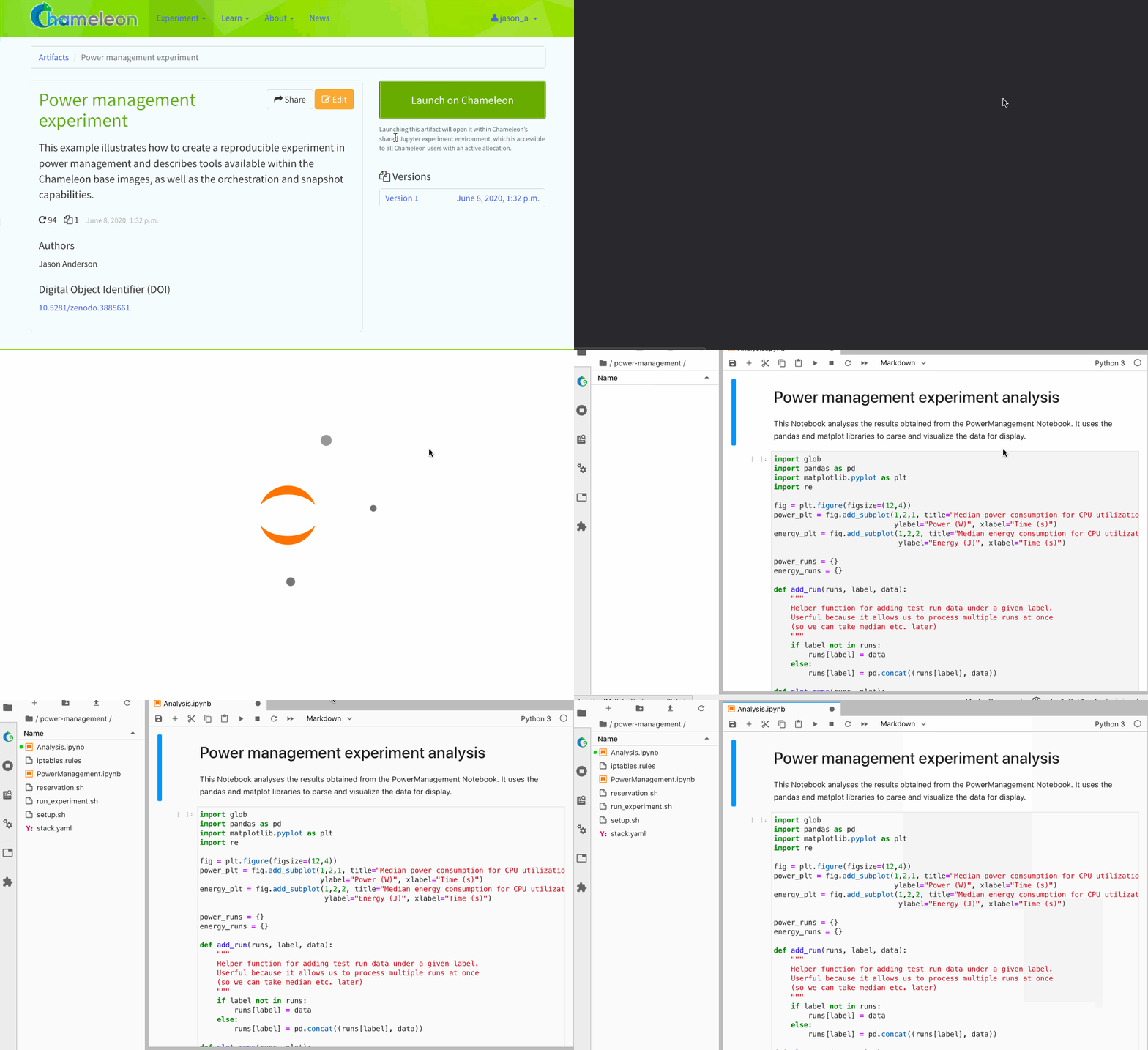
Clicking the “Launch with JupyterHub” button to import a Trovi artifact into your own Jupyter server.
Commenting on artifacts
You can leave a comment on an artifact, or reply to an existing comment to discuss it as a thread. Comments appear at the bottom of the artifact’s page. You can edit or delete your own comments; deleting a comment removes its text, but any replies left beneath it are kept.
Note
Trovi does not yet send email notifications for comments or replies.